How to Tell if Google Considers your Website as Mobile Friendly

google mobile search

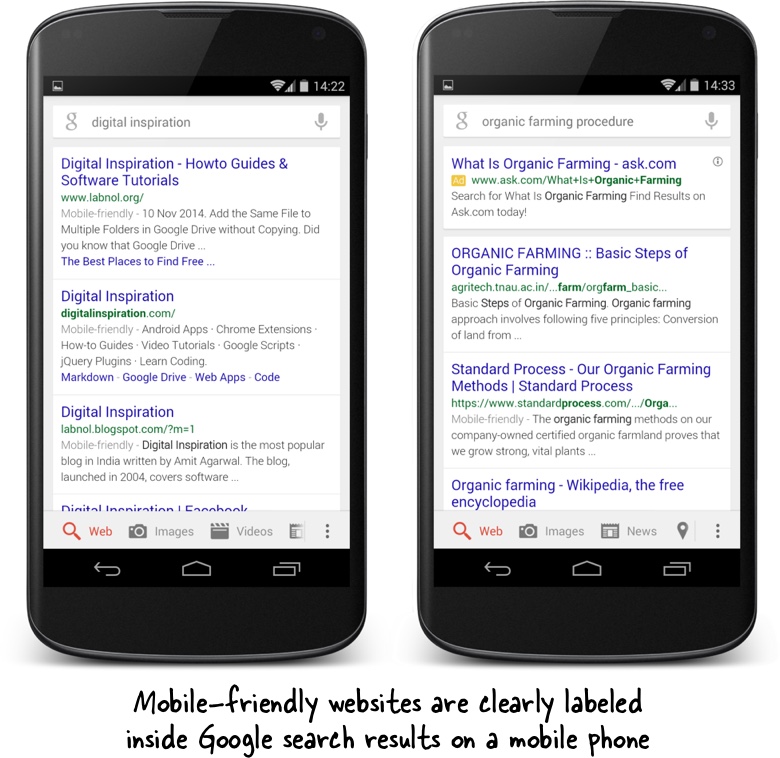
You can no longer afford to not have a mobile-friendly website that isn’t readable or usable on a mobile phone. That’s because Google is now clearly marking websites (screenshot) in mobile search results that it considers mobile friendly and if that tag isn’t getting displayed around your content, your website may see a drop in mobile traffic.

Responsive design is definitely the way to go but will that be enough. How do you confirm if your web pages are considered mobile friendly by Google? There are quite a few options.

One, you can do a site:domain.com search in Google on any mobile phone to check if that tag is displayed around the most popular web pages of your website. This is the quickest way to check mobile-friendliness of multiple pages without using any of the tools.

Google also offers an online tool to help you understand if it considers your website as mobile friendly. You’ll have to run it against all the pages of your site.

Sometimes a website may be responsive and readable on a mobile device but it may not be usable. For instance, the links may have been placed too close to each other making it difficult to tap (like on this page) or the videos may have been embedded using Flash that doesn’t play on mobile devices. These factors may also prevent Google from marking your website as mobile friendly.

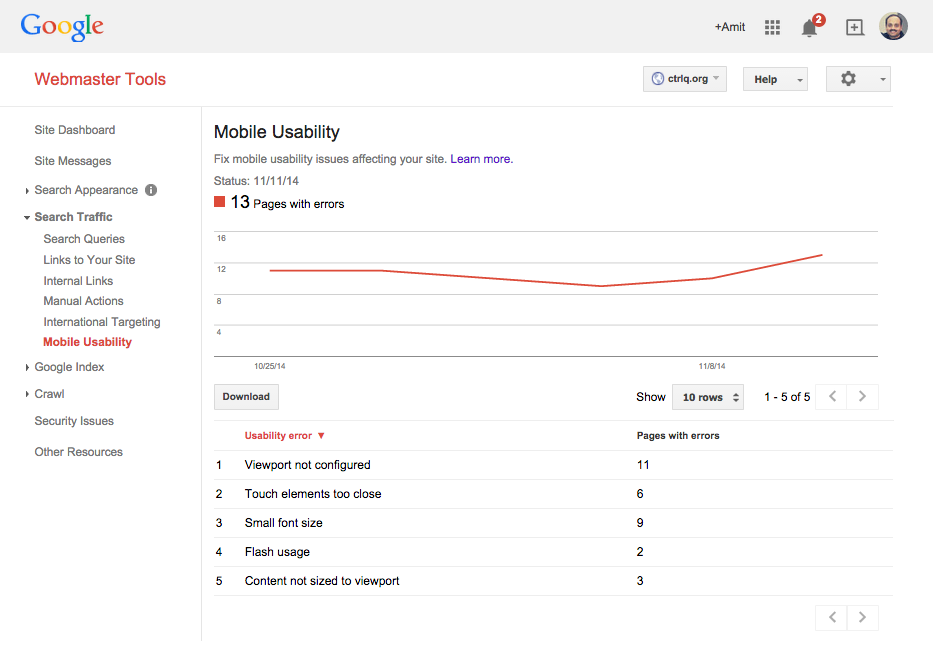
You can use your Google webmaster account to know if your site suffers from any of these usability issues. Open Webmaster Tools, choose Search Traffic and select Mobile Usability. Here you’ll see all the pages on your site that are indexed by Google and need your attention.

Alternatively, you can use the PageSpeed tool to detect usability issues as well without logging into Webmaster Central. Put the URL in the input box and check the User Experience report under Mobile. If you see anything in Red, it needs to be fixed. You can also explore other online tools to test your website on a much wider range of mobile phones.
mobile usability


Comments

Popular posts from this blog

How to Get the Quiz Score in Google Forms with Apps Script

Teachers can easily create an online quiz using Google Forms and students can view their test scores immediately after form submission. Teachers can use Google Forms to create an online quiz and students can view their test scores immediately after  form submission . With Apps Script, you can set up automatic  email notifications  and send quiz scores to parents after a student has taken the quiz. Here’s a sample Google Script that will iterate through every answer in the most recent Google Form response and log the max score (points) of a gradable question and the score for the respondent’s submitted answer. function getGoogleFormQuizScore ( ) { // Returns the form to which the script is container-bound. var form = FormApp . getActiveForm ( ) ; // Get the most recently submitted form response var response = form . getResponses ( ) . reverse ( ) [ 0 ] ; // Gets an array of all items in the form. var items = form . getItems ( ) ; for ( var...

Let People Quickly Save your Events on their Calendars

Create Add to Calendar links for emails and websites and let users quickly save your events on their own Google Calendar, Outlook or Yahoo Calendar. You are organizing an online event - maybe a meeting on Zoom or a training session hosted on Google Meet - and you would like the attendees to add the event to their own calendars. Once added to their calendar, the event will act as an automatic reminder and attendees will get a notification when the conference is about to start. There are two way to go about this: You can create a new meeting in your online calendar (Google, Outlook or any other calendar) and add the individual attendees as guests so the event automatically gets added to their calendar as well. You can include an “Add to Calendar” link or button in your email messages,  forms  and website pages. Anyone can click the link to quickly save your event on to their calendars - see  live demo . Create Add to Calendar Links for Emails and Websites The  Add to C...

How to Test your Eyes using the Computer

They say that you should get your eyes checked every two years but if haven’t had the chance to see a doctor all this time, you can test your vision on your computer as well. Of course these self eye tests are no substitute for visiting your doctor but if you follow the steps well, you may get some idea about how good (or bad) your vision is.  Test your Eyes Online with the Snellen Eye Chart The Snellen Eye Chart Most of us are familiar with the Snellen Chart that has rows of alphabets of different sizes – you read these letters from a distance, usually twenty feet, and the smallest row that you can recognize accurately indicates whether you have normal vision or not. The various eye testing tools that are available online make use of the same Snellen chart. Test your Eyesight Online You should start with University at Buffalo’s  IVAC tool . Use a physical ruler to measure the length of the line on the screen (the length will vary depending on your screen resolution). Also mea...